
Best AI Note Taking Apps for Lectures: Free Limits Compared
You hit record, the lecture runs 75 minutes, and the app stops at minute 30. Now you’re missing the part that was on the exam.
That’s the real problem with AI note takers for class. The features look similar. The free plan limits are not. This guide compares the popular options by what actually matters for lectures: how long they can record, how many minutes you get per month, and what happens when you want to study from the notes later.
The short answer
If you want one pick for most students, my take is this. Record the lecture with your phone’s voice recorder or your laptop, then upload the audio to Google’s NotebookLM and study from it there. It’s free, and it’s built around your own material.
If you want live notes while the professor talks, Otter is the best known option. Its free plan is tight for lectures, though, as you’ll see below.
Why most “best AI note taker” lists don’t fit lectures
Most of these lists were written for meetings. Meetings are 30 minutes, with several people talking. Lectures are 50 to 75 minutes, one person talks, and you care less about action items and more about definitions, examples, and what the professor stressed.
So I’d ignore “meeting bots” and “CRM sync” features. What you need is long recordings, a transcript you can search, and a way to ask questions about the material before an exam.
The free plan trap: length caps
This is the part most comparisons skip. A free plan can look generous in monthly minutes and still be useless for lectures.
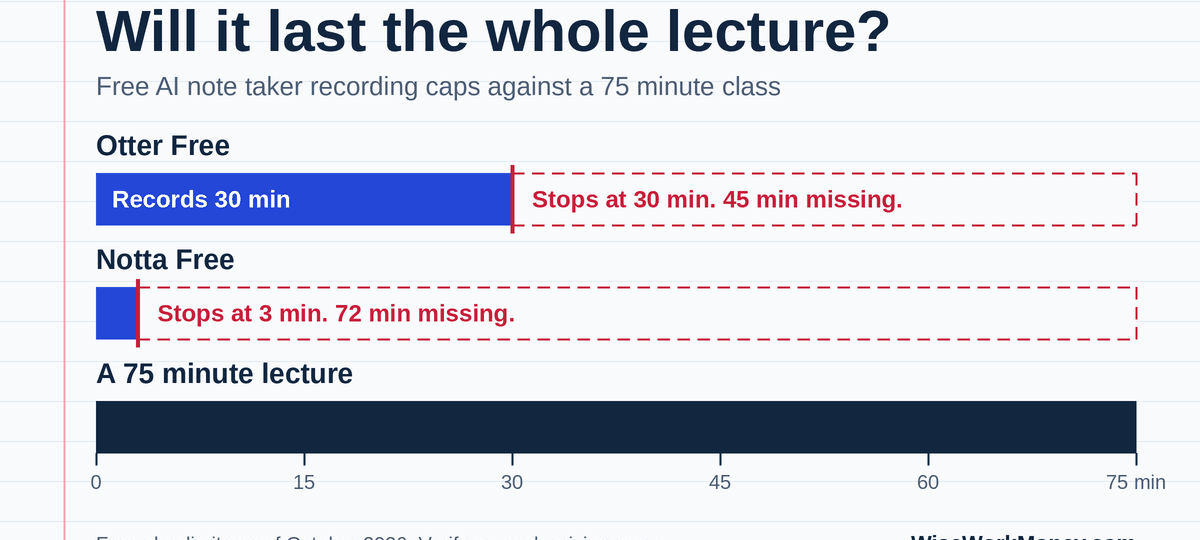
Otter’s free plan gives you 300 transcription minutes a month, caps each conversation at 30 minutes, and limits lifetime file imports to 3. Your class is probably longer than 30 minutes, so you’d lose the back half.
Notta’s free plan is tighter. It gives 120 transcription minutes a month but caps each conversation at 3 minutes. That’s a demo, not a lecture tool.
Here’s a simple example. Say you take 4 lecture courses, and each meets 3 times a week for 50 minutes. That’s 12 classes a week, or about 600 minutes a week. Over a month that’s roughly 2,400 minutes. This is my own math, not a figure from any company.
Now compare that to the plans:
- Otter Free: 300 minutes a month. It covers about 6 classes.
- Otter Pro: 1,200 minutes a month. That’s about half your month, or roughly 2 courses.
So even a paid note taker can run out if you try to record every lecture. Record only the classes where you need it most, or use a workflow that doesn’t depend on monthly minutes (more on that below).
The apps, compared
| App | Best for | Free plan (verify) | Paid (verify) | Watch out for |
|---|---|---|---|---|
| Otter | Live transcript while class runs | 300 min/month, 30 min per conversation, 3 lifetime imports | Pro $8.33/month billed annually, $16.99 monthly | Free cap is shorter than most lectures |
| NotebookLM | Studying from audio, slides, PDFs | 100 notebooks, 50 sources per notebook, 50 chat questions a day | Higher tiers raise limits | Not a live recorder, daily caps apply |
| Notion AI Meeting Notes | Students already living in Notion | Free trial of AI only | Needs Business or Enterprise plan | Pricey if Notion is just for notes |
| Notta | Budget paid option | 3 min per conversation | Pro $8.17/month billed annually | Free plan is not usable for lectures |
Prices and caps above came from third party reviews and help pages, so confirm them on each company’s own page.
Otter: best known, but check the cap
Otter is the app most students have heard of. It transcribes live, so you can watch the text appear and flag key moments.
The catch is the free plan. A 30 minute cap per conversation means you’d need to stop and restart during class, which is a pain. Pro raises the allowance to 1,200 minutes a month, and one source says that plan allows 90 minutes per conversation, which fits most lectures.
My take: Otter makes sense if you need live text, for example if you have trouble following fast speakers. If you just want good study notes later, you may be paying for the wrong thing.
NotebookLM: best for studying, not for recording
NotebookLM is Google’s tool where you upload your own sources and ask questions about them. It accepts audio files along with PDFs, web links, and other material. One guide describes the flow as uploading audio, getting a transcript, then asking the transcript questions. That fits lecture studying well.
The big benefit is that it answers from what you uploaded. Drop in your lecture audio, the professor’s slides, and the textbook chapter. Then ask, “What did the professor say about this topic that isn’t in the slides?” That’s more useful than a generic summary.
The free plan allows 50 sources per notebook. Daily limits for things like audio overviews exist and appear to change over time, so check Google’s current limits page.
The downside: it isn’t built to record live. You record elsewhere first. Also confirm the current file size and length limits for audio uploads, since I couldn’t verify those.
Notion AI Meeting Notes: only if you already use Notion
Notion lets you type /meet on a page and record. It then produces a transcript and summary inside your workspace. Notion’s help page says you must be on the Business or Enterprise plan, and it also lets you upload an existing audio recording to be transcribed.
If your notes, tasks, and study plans already live in Notion, this keeps everything together. If not, I wouldn’t switch just for this.
Worth knowing for privacy: Notion’s help page says it uses outside processors, including OpenAI and Anthropic, to transcribe and summarize, and the audio file is deleted after processing.
Notta: cheap, but skip the free plan for lectures
Notta’s paid plan is affordable. Pro is $8.17 a month billed annually, with 1,800 minutes a month. Sources disagree on its per recording cap, with one saying 5 hours and another 90 minutes. Check before you pay.
Because the free tier stops each recording at 3 minutes, you can’t properly test it on a real lecture without paying. That’s a drawback, honestly.
A simple workflow that avoids most limits
Here’s the setup I’d suggest to a friend on a tight budget:
- Record the audio with your phone’s built in voice recorder, placed near the front.
- After class, upload the file to your transcription or study tool.
- Add the professor’s slides or your own typed notes as extra sources.
- Ask questions: “List the key terms from this lecture,” or “What did the professor say will be on the exam?”
- Check the answers against your own notes and the textbook.
This way you aren’t tied to a single app’s monthly minutes during class, and you keep the original audio as a backup.
Mistakes to avoid
Trusting the summary blindly. AI summaries can miss things or get details wrong. Names, numbers, formulas, and dates are the riskiest. Check them against the slides.
Ignoring audio quality. Bad audio makes bad transcripts. Sit closer, and avoid recording in a noisy hallway.
Skipping the math. Math, diagrams, and anything written on a board won’t show up in audio. Take a quick photo of the board.
Recording without permission. This one matters most, so it gets its own section.
Check recording rules first
Many professors allow recording. Some don’t. Your syllabus or school policy may say so, and some schools handle it through disability services as an accommodation. Ask before you record.
Laws on recording conversations also differ by state in the US. Some states require everyone’s consent. Look at your school’s policy and your state’s rules, and don’t share a recording of a class publicly.
Also think about what you upload. Lecture audio may include other students’ voices or questions. Keep recordings private and don’t post them.
Which one should you pick?
- Free and mostly for studying: Record on your phone, then use NotebookLM.
- Live transcript during class: Try Otter’s free plan first, then decide on Pro if the 30 minute cap hurts.
- Already in Notion: Look at AI Meeting Notes, but check the plan requirement.
- Cheapest paid transcript tool: Notta Pro, after confirming its recording cap.
Final thoughts
The best AI note taking app for lectures is the one whose free plan survives a full class. Check the per recording limit before anything else, then the monthly minutes. After that, decide whether you want live text or better study tools.
If you’re building a student toolkit, also see our guide to the best free AI tools for college students. It covers other apps that pair well with the note taking setup above.
FAQ Section
Are AI note taking apps free for lectures?
Some have free plans, but the limits often make them hard to use for a full class. Otter’s free plan stops each conversation at 30 minutes, and Notta’s stops at 3. NotebookLM’s free plan is more generous for studying, but you record elsewhere first.
Can I use AI to take notes in class?
Technically yes, but check your professor’s and school’s recording policy first. Many allow it, some don’t, and state laws on recording vary.
What’s the difference between a transcript and a summary?
A transcript is the full text of what was said. A summary is a shorter version generated by AI. Use the transcript to check details and the summary to review quickly.
How accurate are AI lecture transcripts?
It depends on audio quality, accents, and subject terms. I haven’t measured accuracy here, so test any app on one real lecture before relying on it, and always check key terms and numbers.
Can I upload a lecture recording instead of recording live?
Yes, with several tools. NotebookLM and Notion both describe accepting audio files. Otter’s free plan limits lifetime imports, so check that first.
Do I need to pay?
Not always. A free workflow using a phone recorder and NotebookLM covers many students. Pay only if you hit limits you can’t work around.